
Updated on October 9, 2026 – refreshed with Microsoft’s latest rollout timeline, offline and PST support, and Copilot features.
Few apps are as personal as your inbox. For almost 30 years, Outlook has been where most of us start (and often end) our workday – so when Microsoft changes it, people notice. On September 21st, 2023, Microsoft launched the new Outlook desktop app for Windows for personal accounts, and on August 1st, 2024, it became generally available for work and school accounts. Since then, the new Outlook has gradually become the default.
The new Outlook feels like Outlook on the web – and whether you like it or not, this is the strategic direction Microsoft is going in. The benefit is a consistent experience between the Windows app and Outlook on the web – something that was long overdue.
In this blog post, we walk you through when the switch happens, what’s new, what to check before you switch, and how to help your people feel at home in the new Outlook from day one.
When will the new Outlook become the default?
Microsoft moves organizations from classic to new Outlook in three stages: opt-in (users choose), opt-out (the new Outlook is the default, but users can switch back) and cutover (no switching back). Where you are depends on the type of organization you work in and your IT settings.
Small and medium businesses have been switched to the new Outlook automatically since January 2025, with the option to switch back. For larger organizations, the opt-out stage begins in March 2027. No date has been announced for cutover yet, but Microsoft has promised IT departments at least 12 months’ notice, and existing classic Outlook installations are supported until at least 2029.
In other words: if you work in a large organization, you have time – but not forever. Your IT department can also move people over on its own schedule. You can read more in Microsoft’s guide to the progressive stages of migration to the new Outlook.
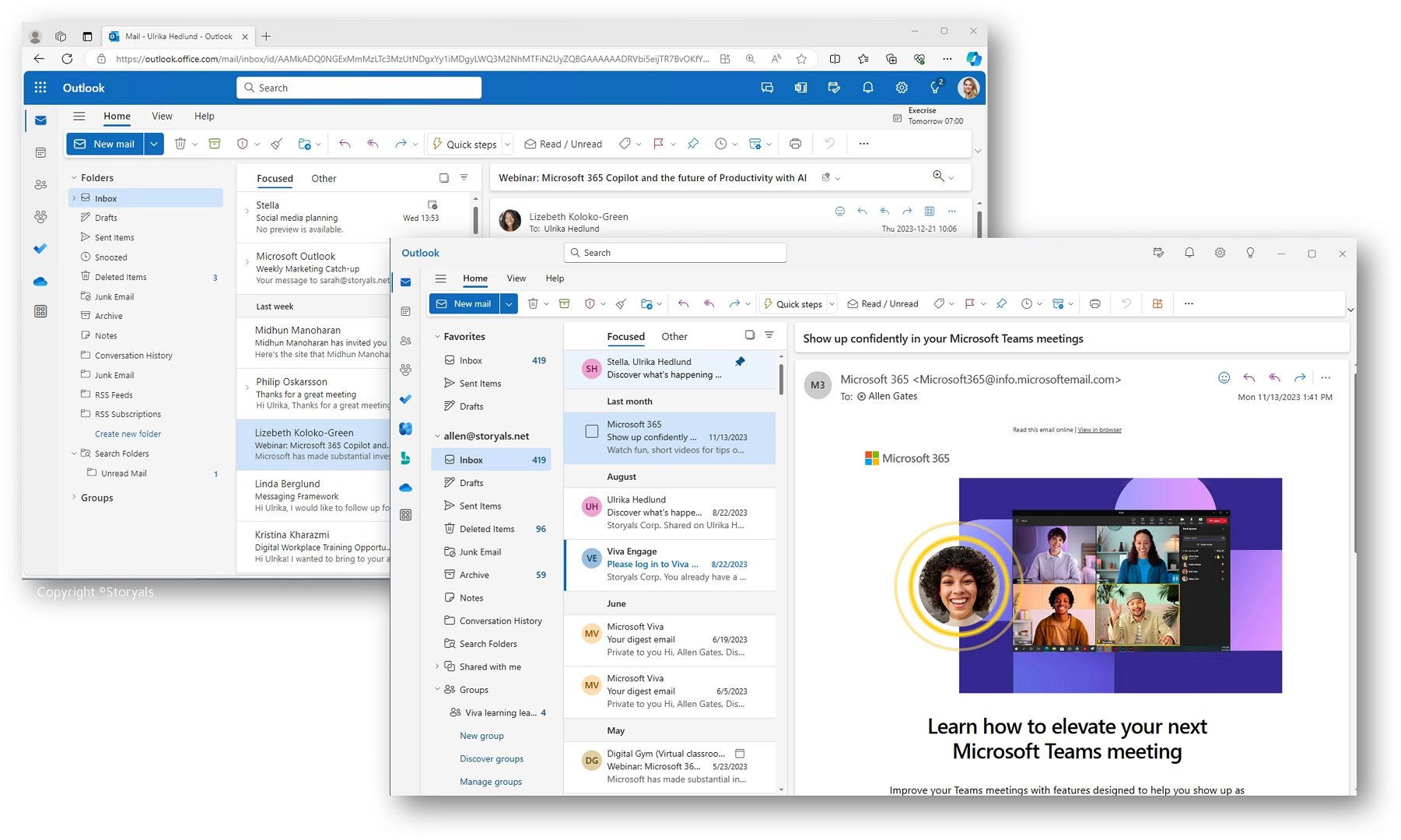
Faster and leaner user interface
The new Outlook is built on the same modern foundation as Outlook on the web, with simplified menus and Microsoft’s Fluent design. In our experience, switching between emails and calendar appointments is quick, and because new mail arrives continuously, you rarely need to check for it yourself. If you do, the familiar “Send/Receive” tab has been replaced with “Sync”.
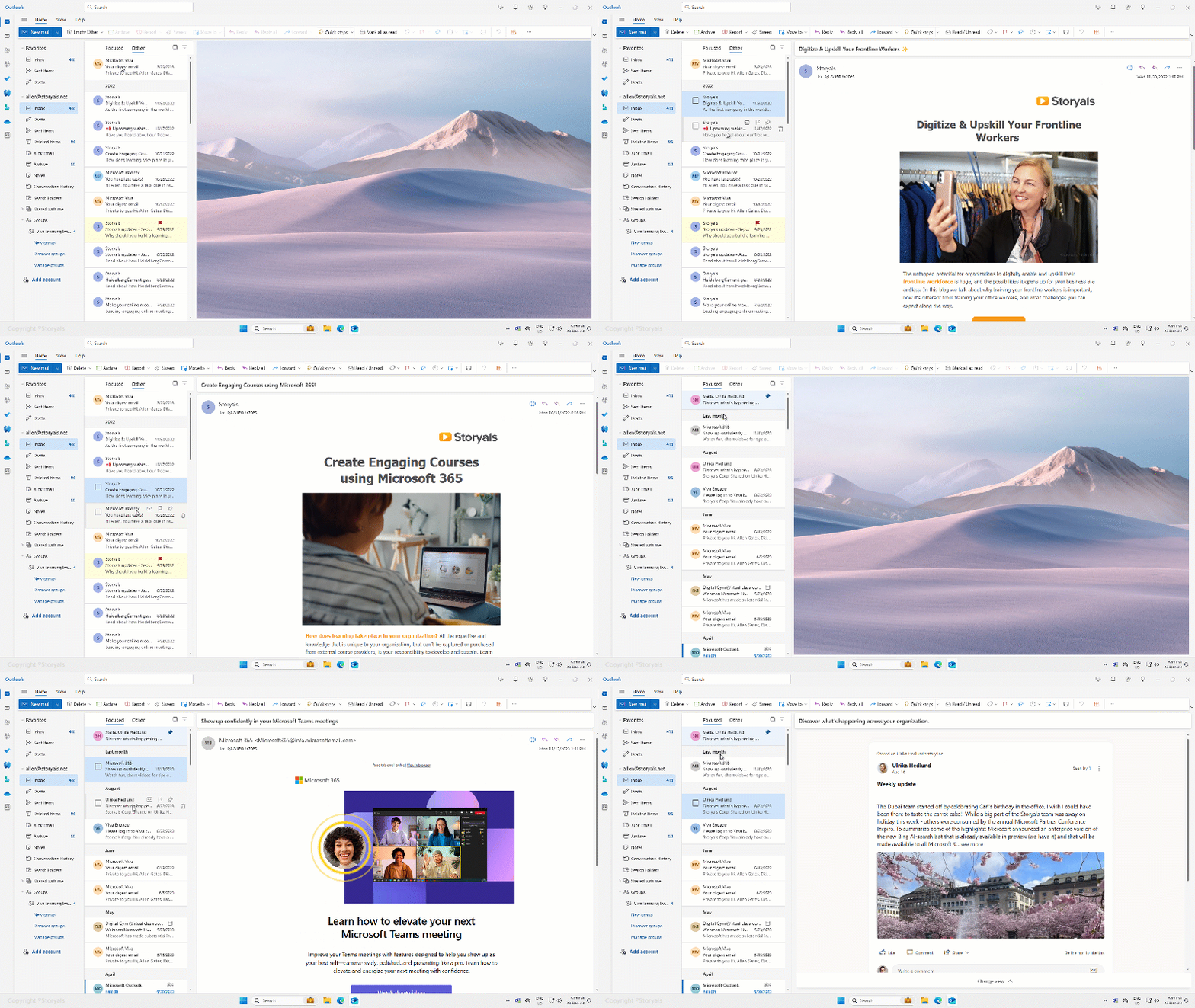
That said, the change in appearance is substantial. After years with the classic layout, it’s completely normal if the new Outlook takes some getting used to.
Support for modern Microsoft 365 apps
The new Outlook works hand in hand with other modern Microsoft 365 apps like To Do, Loop and OneDrive, to name a few. You can insert a Loop component agenda in your meeting invitations to keep everyone aligned, and click the “My Day” button to see your To Do tasks without switching apps.
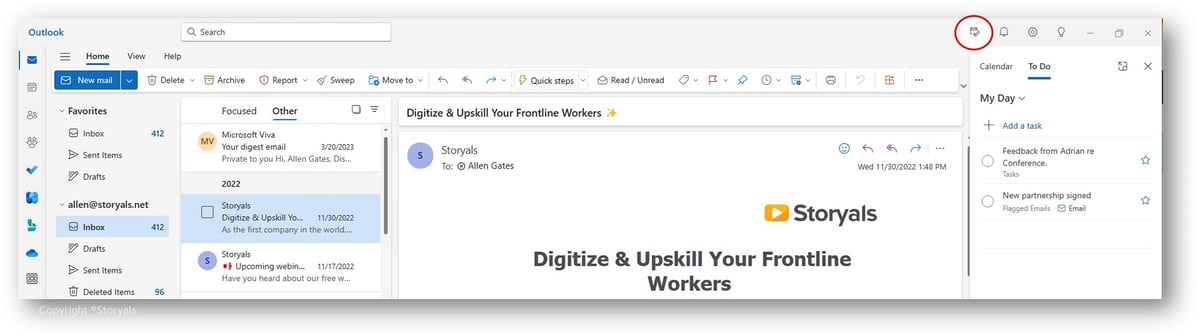
New features
“Sweep”, “Pin” and “Snooze” have been available in Outlook on the web for quite some time – and we’re happy to see them in the new desktop version too.
“Sweep” lets you quickly tidy up your inbox – like deleting emails older than 10 days from a specific sender. Pinning keeps priority messages at the top of your inbox, so your most important email is never buried under new ones. “Snoozing” an email removes it from your inbox and brings it back at a time you choose.
With the new Outlook, you can also keep track of meeting invitations you have to decline, so you can still stay on top of meetings even if you can’t attend yourself. And if you can’t join but want to stay in the loop, you can “Follow” a meeting instead: your calendar shows the time as free, and you still get access to the meeting chat, recording and transcript.
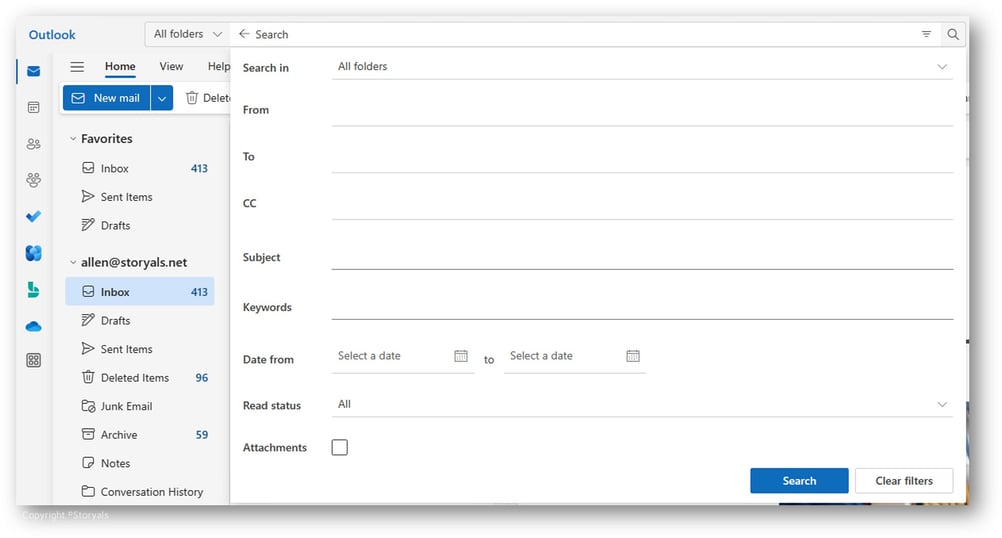
Search is better too, with easy-to-use filter buttons and an advanced search window to help you find what you’re looking for.
AI and Copilot: Improve your email communication
The new Outlook is also where much of Microsoft’s AI innovation lands. Copilot in Outlook helps you draft emails, coaches you on tone, reader sentiment and clarity, summarizes long email threads and helps you prepare for meetings. With Copilot Chat, you can even ask questions about your inbox and calendar, like “What do I need to prepare for tomorrow?”
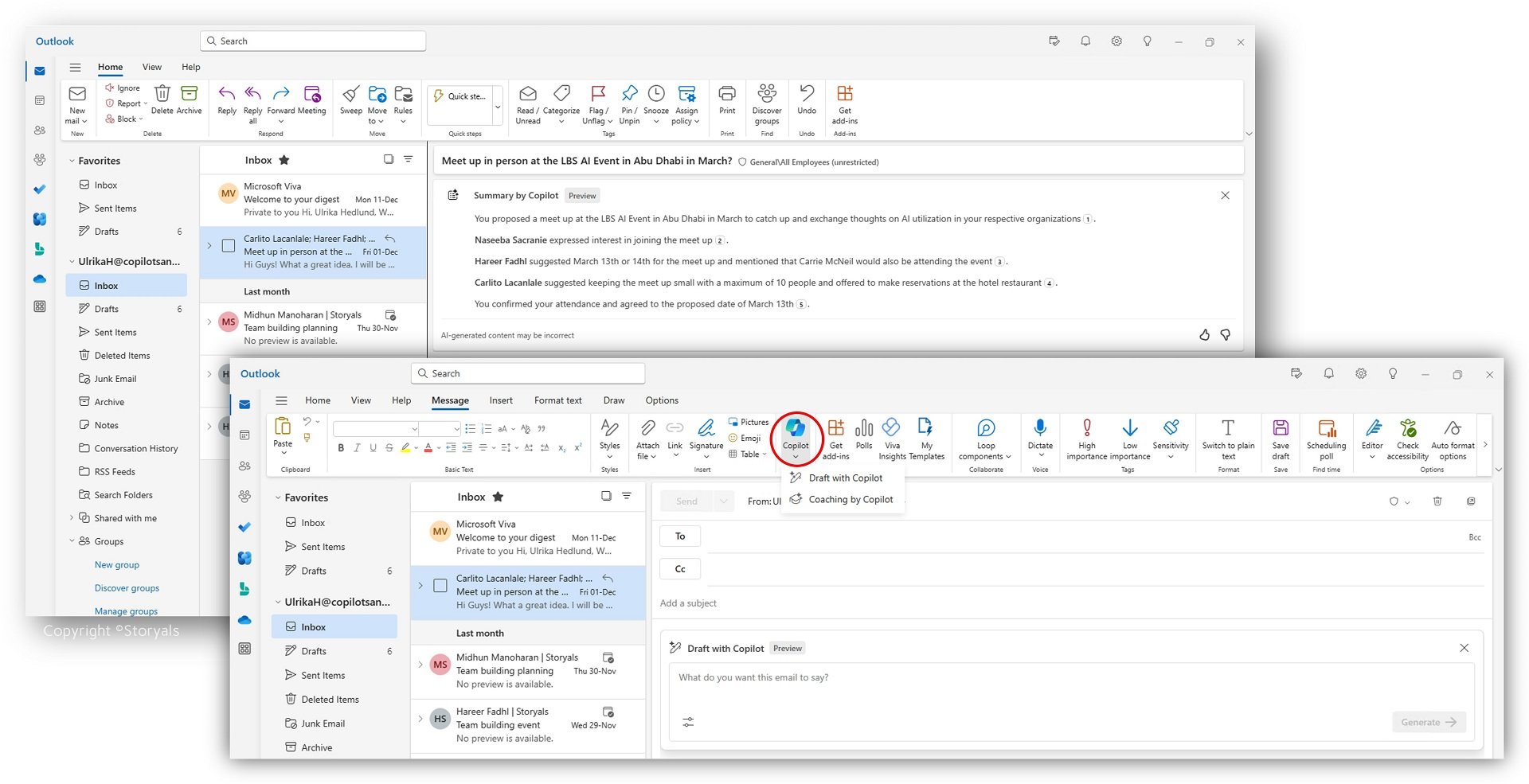
To be fair to the classic version: many Copilot features, including drafting, coaching and thread summaries, are also available in classic Outlook, and Microsoft brought meeting preparation with Copilot to classic Outlook in August 2026. But new capabilities have typically arrived in the new Outlook first. What you can use depends on your license, your account and your organization’s settings.
A glimpse of what’s coming: creating rules and organizing your inbox with Copilot is currently part of Microsoft’s Frontier preview, with limited availability. Please note that it isn’t available to users in the EU yet.
What to check before you switch
Before you move a team over, check these four areas:
- Working offline. This used to be the most common complaint – and it has improved a lot. You can now read, manage and draft emails offline, and view saved calendar events and contacts. Your settings decide which folders and how many days of email are saved (30 days by default). Some actions, such as creating or changing calendar events, still need an internet connection.
- PST files. The classic Outlook uses PST files to store emails, contacts, calendar information and tasks on your computer. The new Outlook lets you open PST files, read and search their emails, and move, copy or delete emails and folders. You can also import PST content into your mailbox and export mailbox data to a PST file. However, support for PST files still has limitations and requirements – for example, classic Outlook must also be installed to open a PST file, and PST files aren’t supported on the ARM version of the new Outlook. If your team relies on PST files, check which features are available in your organization before switching.
- Add-ins. The new Outlook supports web add-ins, but not the older COM add-ins built for classic Outlook. Check that the add-ins your teams depend on are available in a web version.
- Switching back. Until cutover, people can switch between the new and classic Outlook with a toggle. Make sure everyone knows how – it takes the pressure off trying something new.
Make the switch a success
Technology doesn’t transform organizations. People do. The new Outlook brings real benefits, but after years with the classic version, habits run deep – and a new layout can feel like someone rearranged your kitchen overnight. The key to a smooth transition isn’t a big-bang rollout. It’s helping people understand why the new Outlook is worth it, and how to make it work for them.
That’s why we created our story-based course, “Take control of your day”. Using the new Outlook and To Do, your employees learn how to declutter their inbox, organize their schedule and improve their digital communication – so they can work smarter and manage their day with confidence.
Prefer to see it in action? Watch our recorded webinar, Learn to love the new Outlook, and read Time to transition to the New Outlook for more tips on planning the move.
Planning the switch for your organization? Contact us and let’s make the new Outlook something your people look forward to.