
When Copilot was first introduced, AI enthusiasts raved about its amazing ability to create content in seconds. Meanwhile, brand managers cringed at the results. After years of investing time and money to build a recognizable brand, everyone suddenly generated content that was completely off-brand. The good news is that things have changed. Today, organizations have much better ways to guide Copilot so that the content it generates better aligns with corporate branding, from visual identity to tone of voice. Here’s a five-step guide to help keep Copilot on brand and your Brand Managers, if not delighted, at least not grinding their teeth in frustration!
Step 1 - Identify your Brand Manager
For Copilot to generate content that is “on brand,” it needs to know what your brand is. This guidance is provided through a so called ”Brand Kit” that needs to be uploaded to, or created in, Copilot Create. Any employee can do this, but only someone assigned the “Brand Manager” role in the Microsoft 365 admin center can make it “Official” and available across the organization. This is why you need to identify who in your organization should be assigned this role.
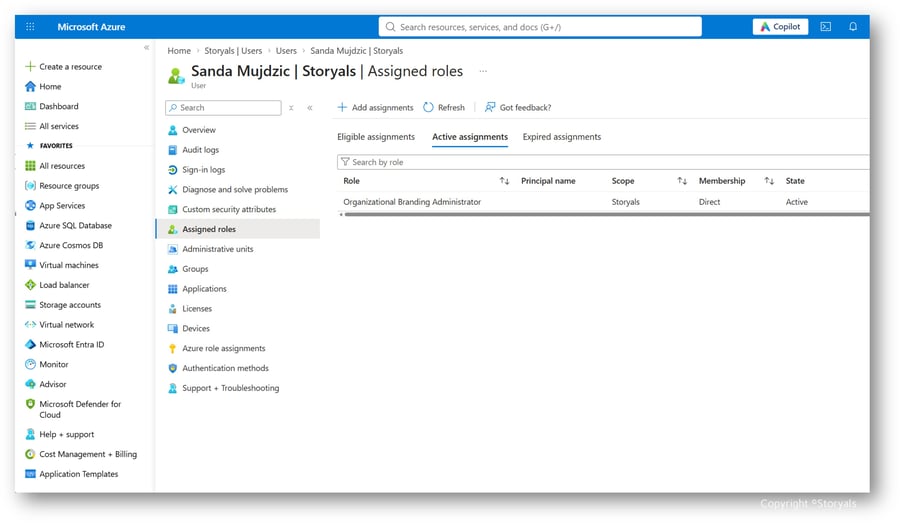
One or more people can be assigned the Brand Manager role by your Microsoft 365 Administrator; the only prerequisite is that they need to have a Microsoft 365 Copilot (premium) license. Once the role has been assigned, it can take up to 24 hours for permission to create official Brand Kits to take effect. Learn more about the steps in the MS Learn article,” "Configure Brand Kit governance and organizational assets“.
Step 2 – Create your Brand Kit
With the Brand Manager role activated, it’s time to create Brand Kit:
1. In Copilot on the web, select Apps and more in the upper-left corner, then select “Create”.
![SCREENSHOT 2 – CREATE] (2)](https://storyals.com/hs-fs/hubfs/SCREENSHOT%202%20%E2%80%93%20CREATE%5D%20(2).webp?width=900&height=456&name=SCREENSHOT%202%20%E2%80%93%20CREATE%5D%20(2).webp)
2. Select “More”, then “Brand Kits” under Manage Brand Kits. From there, select Create Brand Kit. You can also go straight to Brand Kits using the web address: office.com/create/brandkit
![SCREENSHOT 2 – CREATE]](https://storyals.com/hs-fs/hubfs/SCREENSHOT%202%20%E2%80%93%20CREATE%5D.webp?width=900&height=466&name=SCREENSHOT%202%20%E2%80%93%20CREATE%5D.webp)
3. Give your kit a name that employees will recognize, for example “Company name – Brand Kit”.![SCREENSHOT 4 – EMPTY Brand Kit]](https://storyals.com/hs-fs/hubfs/SCREENSHOT%204%20%E2%80%93%20EMPTY%20Brand%20Kit%5D.webp?width=900&height=523&name=SCREENSHOT%204%20%E2%80%93%20EMPTY%20Brand%20Kit%5D.webp)
There's a lot of information and brand assets to add, but take your time. You can share it with others if you need to collaborate, and the Brand Kit won’t be visible to other users until it is published. If needed, you can create multiple Brand Kits for your organization.
Step 3 – Add brand assets to the Brand Kit
The next step is to add brand assets to your Brand Kit. These comprise multiple things:
- Tone of voice - Tell Copilot how your brand should sound, from its personality to the words and writing conventions you use. Be specific. “Warm, confident, practical and never hype-driven” gives it much more to work with than “professional.”
- Symbols and logos - Add your primary logo, secondary logos, and approved variations. Include versions for different backgrounds, formats, and uses, so Copilot has the right options to work with.
- Images and icons - Give Copilot approved photography, graphics, illustrations and icons that feel like your brand. Your visual identity goes well beyond a color palette, and these assets help bring it to life.
- Colors and fonts - Be precise about your colors, using values such as hexadecimal codes, and add your approved fonts. Include the typefaces you use for headings, body text and any specialized uses.
![Screenshot 5 - STORYALS Brand Kit]](https://storyals.com/hs-fs/hubfs/Screenshot%205%20-%20STORYALS%20Brand%20Kit%5D.webp?width=900&height=505&name=Screenshot%205%20-%20STORYALS%20Brand%20Kit%5D.webp)
You can learn more about managing Brand Kits in the Microsoft Support article, "Create and Manage Official Brand Kits in Microsoft Copilot.”
Step 4 – Put your brand to use
Now that your Brand Kit is published, it’s time to put it to use. Microsoft plans to bring Brand Kits to more applications, but as of October 2026, you can use them in PowerPoint, Copilot Create and Cowork. To get started in PowerPoint, open a presentation and the Copilot pane. Select the + button, choose “Select a brand” and pick your Brand Kit.
![SCREENSHOT 6 WITH SELECTION OF BRAND KIT]](https://storyals.com/hs-fs/hubfs/SCREENSHOT%206%20WITH%20SELECTION%20OF%20BRAND%20KIT%5D.webp?width=900&height=502&name=SCREENSHOT%206%20WITH%20SELECTION%20OF%20BRAND%20KIT%5D.webp)
Then enter your prompt and let Copilot use your kit’s approved templates, colors, fonts, assets, and guidance to help create a presentation that reflects your brand.
![SCREENSHOT 7 OF PROMPT]](https://storyals.com/hs-fs/hubfs/SCREENSHOT%207%20OF%20PROMPT%5D.webp?width=900&height=502&name=SCREENSHOT%207%20OF%20PROMPT%5D.webp)
![SCREENSHOT 8 FINAL RESULT IN POWERPOINT]](https://storyals.com/hs-fs/hubfs/SCREENSHOT%208%20FINAL%20RESULT%20IN%20POWERPOINT%5D.webp?width=900&height=504&name=SCREENSHOT%208%20FINAL%20RESULT%20IN%20POWERPOINT%5D.webp)
Step 5 – Train your employees
Adding a Brand Kit to Copilot doesn’t mean your branding will automatically be applied to everything employees create with Copilot. They need to know how to apply it. Make it part of your Copilot awareness and training sessions, showing users how to select and use it. Set clear expectations, too: a Brand Kit is a helpful starting point, but no guarantee that the result will be 100% on brand. This is also an iterative process, so in some cases, the templates you have uploaded to your Brand Kit might have to be modified to be better aligned with the agentic workplace.
Want a helping hand getting your employees up to speed? At Storyals, our Copilot Kickstart Program combines live instructor-led coaching with on-demand, story-based courses to help employees put Microsoft 365 Copilot to work in their everyday tasks. Get in touch to explore how we can help your employees build confidence with Copilot - and give your Brand Managers a little more peace of mind!